logo
Products
quote
Products
Products
Products
Home > Products > Printer Maintenance Kit > Maintenance Kit MK-6715A, 1702N70UN0, MK6715A for Kyocera TASKalfa 6501i 8001i Printer Parts
Catagories
Contacts
Contacts: Mr. Jessie
Fax: 86-0757-86771039
Contact Now
Mail Us

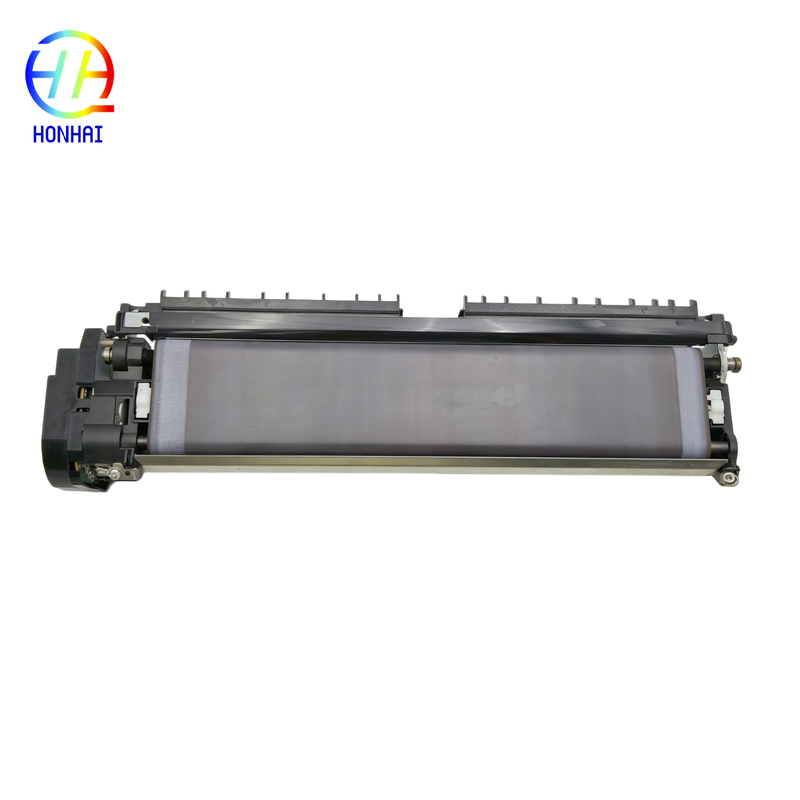
Maintenance Kit MK-6715A, 1702N70UN0, MK6715A for Kyocera TASKalfa 6501i 8001i Printer Parts

Product Details

Payment & Shipping Terms

Minimum Order Quantity: 10

Packaging Details: Neutral Packing

Delivery Time: 3-7 work days

Payment Terms: T/T,Western Union

Supply Ability: 5000 piece/month

Get Best Price
Highlight:

Kyocera TASKalfa printer maintenance kit

,

MK-6715A toner cartridge replacement

,

TASKalfa 6501i 8001i printer parts

Maintenance Kit MK-6715A, 1702N70UN0, MK6715A for Kyocera TASKalfa 6501i 8001i Printer Parts

Maintenance Kit MK-6715A (Part Number: 1702N70UN0). Keep your high-volume printing operation running in tip-top condition! Compatible with Kyocera TASKalfa 6501i and 8001i MFPs, this customer-replaceable Maintenance Kit ensures that your printer remains reliable and produces outstanding image quality. Kyocera also recommends using this replacement kit specific to the manufacturer’s OEM specifications. Insist on it for fast and easy installation.

Get a better deal with this compact package of high-usage parts!

Product Specifications
  • Product Type: Printer Maintenance Kit
  • Part Number (P/N): MK-6715A / 1702N70UN0
  • Condition: Brand New (OEM / Original)
  • Color: Black
  • Expected Service Life: Up to 600,000 pages (A4/Letter) - Subject to printer model and usage conditions
  • Main Components Included: Typically includes Drum Unit, Developer Unit, and other essential wear parts required for routine maintenance.
  • Application: Restores print quality, reduces background noise, and prevents paper jams.
Usage & Installation Notes
  1. Power Down: Always turn off the main power switch of the printer and unplug the power cord before attempting to replace any internal components.
  2. Check Service Life: Monitor the printer's maintenance status via the system menu. It is recommended to replace the kit when the machine prompts a maintenance request or when print quality noticeably declines.
  3. Handle with Care: Avoid touching the surface of the drum or developer units directly with bare hands, as skin oils can damage the components and affect print quality.
  4. Reset Counter: After installing the new maintenance kit, ensure you reset the maintenance counter in the printer's service mode to accurately track the lifespan of the new parts.
  5. Professional Installation: Due to the complexity of internal printer mechanisms, installation by a qualified service technician is highly recommended to avoid accidental damage.
  6. Storage: Store the maintenance kit in a cool, dry place away from direct sunlight and extreme temperatures to maintain the integrity of the parts before use.