logo
Products
quote
Products
Products
Products
Home > Products > Drum Cleaning Blade > DK-1150 Drum Cleaning Blade - High-Durability Polyurethane for Kyocera ECOSYS Printers to Remove Background Smudges
Catagories
Contacts
Contacts: Mr. Jessie
Fax: 86-0757-86771039
Contact Now
Mail Us

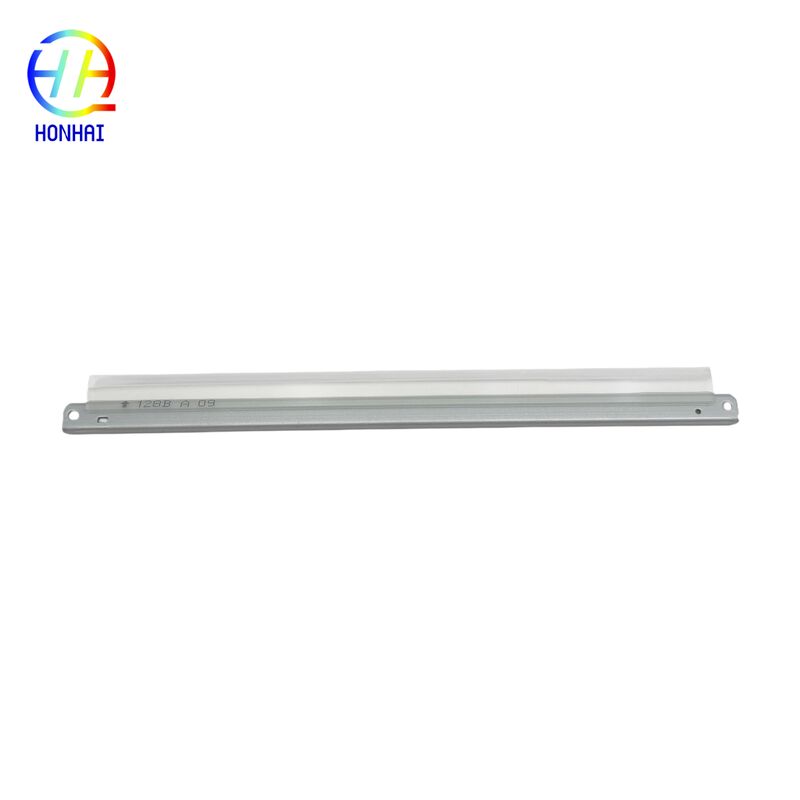
DK-1150 Drum Cleaning Blade - High-Durability Polyurethane for Kyocera ECOSYS Printers to Remove Background Smudges

Product Details

Place of Origin: China

Brand Name: Kyocera

Certification: CE, ISO9001

Model Number: DK-1150

Payment & Shipping Terms

Minimum Order Quantity: 10

Packaging Details: Neutral Packing

Delivery Time: 3-7 work days

Payment Terms: T/T,Western Union

Supply Ability: 5000 piece/Month

Get Best Price
Highlight:

Kyocera drum cleaning blade

,

high-durability polyurethane cleaning blade

,

ECOSYS printer smudge removal blade

Material:
High-Durability Polyurethane
Package Contents:
1 X DK-1150 Drum Cleaning Blade
Material:
High-Durability Polyurethane
Package Contents:
1 X DK-1150 Drum Cleaning Blade
DK-1150 Drum Cleaning Blade - High-Durability Polyurethane for Kyocera ECOSYS Printers to Remove Background Smudges
Drum Cleaning Blade DK-1150 for Kyocera Ecosys P2040 P2235 P2335 M2040 M2135 M2235 M2540 M2635 M2640 M2735 M2835 Printer Parts Cleaning Blade
Are you annoyed by slow, stubborn background stains, ghosting, or reappearing patterns on printouts? All of these problems are most commonly caused by a worn or damaged drum cleaning blade. This small component is essential for scraping off leftover toner from the drum surface after the completion of the printing process. If it does not do its job, toner is left behind, and it spoils the next page!
This DK-1150 Drum Cleaning Blade is compatible with several Kyocera ECOSYS printers and is manufactured from quality, durable polyurethane, ensuring proper contact is made with the drum, removing excess to print a clean-sided page every time.
DK-1150 Drum Cleaning Blade - High-Durability Polyurethane for Kyocera ECOSYS Printers to Remove Background Smudges 0 DK-1150 Drum Cleaning Blade - High-Durability Polyurethane for Kyocera ECOSYS Printers to Remove Background Smudges 1
Key Features & Benefits
  • Replace Print Quality: Removes background smudges, ghosting, and vertical streaks for clear printouts.
  • High-quality material: Made of quality wear-resistant polyurethane print media with long-lasting flexibility and edge sharpness.
  • Perfect fit: Compatible with Kyocera ECOSYS P2040/P2235/P2335/M2040/M2135/M2235/M2540/M2635/M2640/M2735/M2835 Series. Simple and inexpensive maintenance remedies prolong the life of the drum unit and increase the print quality (no need for expensive replacement).
  • Reliable - natural fit for your printer, no leaking toner gets clogged inside.
When to Replace Your Cleaning Blade
If your printouts show a gray background, repeating spots, or faint images from previous pages (ghosting), it is highly recommended to replace the DK-1150 cleaning blade immediately.
Compatibility List
This Cleaning Blade is fully compatible with the following Kyocera ECOSYS models:
  • Kyocera ECOSYS P2040 / P2040dn
  • Kyocera ECOSYS P2235 / P2235dn
  • Kyocera ECOSYS P2335 / P2335dn
  • Kyocera ECOSYS M2040 / M2040dn
  • Kyocera ECOSYS M2135 / M2135dn
  • Kyocera ECOSYS M2235 / M2235dn
  • Kyocera ECOSYS M2540 / M2540dn / M2540dw
  • Kyocera ECOSYS M2635 / M2635dn
  • Kyocera ECOSYS M2640 / M2640dn / M2640idw
  • Kyocera ECOSYS M2735 / M2735dn / M2735dw
  • Kyocera ECOSYS M2835 / M2835dn / M2835dw
Handling Instructions
  1. Handle with Care: The cleaning blade has a very sharp and delicate edge. Avoid touching the edge with your fingers, as oils and dirt can affect its performance.
  2. Check the Drum Surface: Before installing the new blade, inspect the drum surface for any scratches or damage. A damaged drum can ruin a new cleaning blade quickly.
  3. Clean Thoroughly: When replacing the blade, take the opportunity to clean out any residual toner inside the drum unit housing to ensure optimal performance.
Basic Replacement Overview
  • Remove the drum unit from your Kyocera printer.
  • Carefully disassemble the drum unit casing to access the old cleaning blade (note the orientation of the old blade).
  • Remove the old blade and clean the area of any stuck toner.
  • Install the new DK-1150 cleaning blade, ensuring it is seated correctly and evenly.
  • Reassemble the drum unit and reinstall it into the printer.
  • Print several test pages to allow the new blade to seat properly and clear any residual toner.